An ERP system may offer extensive functionality, but employees will avoid it if everyday tasks feel confusing, slow, or unnecessarily complicated. When users struggle to find information, complete approvals, enter data, or understand the next step in a workflow, they often return to spreadsheets, email, and other familiar tools.
This is where ERP user experience personalization becomes valuable. Instead of giving every employee the same screens, menus, reports, and options, a personalized ERP interface presents information according to the user’s role, responsibilities, device, and working context.
Effective personalization does not mean redesigning the entire system for every individual. It means reducing unnecessary complexity, supporting real workflows, and helping employees complete their work with fewer steps and less training.
Why ERP User Experience Affects Adoption
ERP platforms connect finance, procurement, inventory, sales, manufacturing, human resources, and other business functions. This broad scope makes them useful, but it can also make them difficult to navigate.
A finance manager may need cash-flow reports, pending approvals, and budget information. A warehouse employee needs receiving tasks, pick instructions, stock locations, and barcode scanning. Showing both users the same dashboard creates clutter without improving access to useful information.
Poor ERP usability commonly leads to:
- Employees relying on spreadsheets or manual workarounds
- Frequent data-entry mistakes
- Longer onboarding and training periods
- Incomplete or inconsistent system data
- More support requests
- Resistance to process changes
A clearer interface lowers these barriers. When employees can quickly understand what needs attention and how to complete a task, the ERP becomes part of their normal workflow rather than an additional administrative burden.
What Is ERP UX Personalization?
ERP UX personalization is the process of adapting an ERP interface and its workflows to the needs of specific users or user groups. Personalization may be based on job role, department, location, permissions, device, frequently performed tasks, or individual preferences.
Common examples include:
- A purchasing dashboard displaying open purchase orders, supplier delays, and approval requests
- A warehouse interface showing receiving, picking, packing, and inventory movement tasks
- A sales dashboard highlighting leads, quotations, customer orders, and overdue follow-ups
- A mobile interface designed for field employees who need to update records away from a desk
- A management view summarizing operational performance without exposing detailed transaction screens
Personalization can be introduced through standard ERP configuration, role-based permissions, dashboard settings, workflow rules, or custom ERP software development. The right approach depends on the complexity of the workflow and how much the standard system already supports.
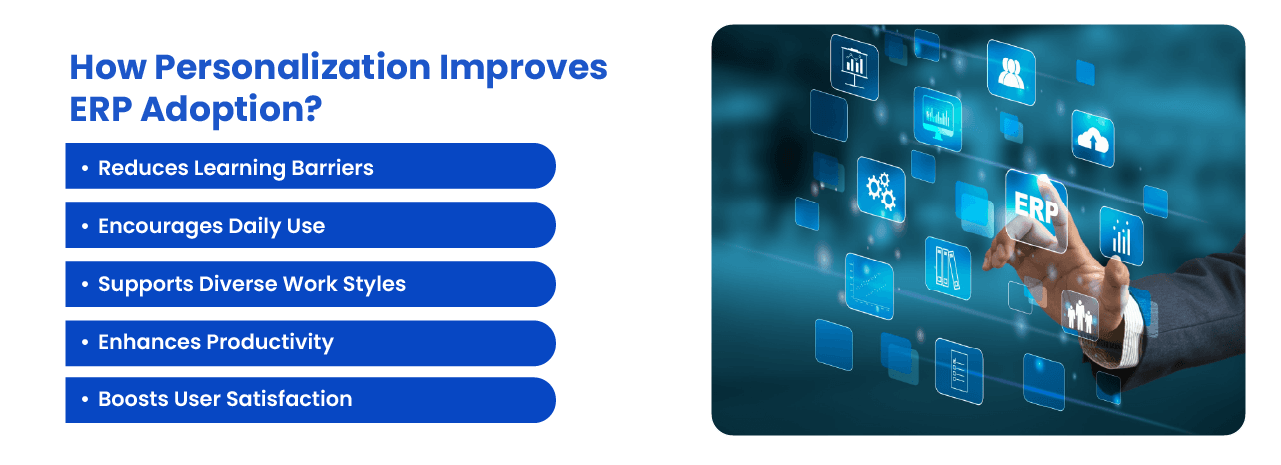
How ERP UX Personalization Improves User Adoption
It Reduces the Learning Curve
New users should not need to understand the entire ERP system before they can perform their jobs. A role-based interface limits the initial experience to relevant screens, actions, and information.
For example, an accounts-payable employee may only need access to supplier invoices, payment approvals, and exception reports. Removing unrelated modules makes the system easier to understand and reduces the amount of training required.
It Makes Daily Tasks Faster
Frequently used actions should be easy to reach. Personalized shortcuts, saved filters, recent records, task queues, and preconfigured reports can reduce repeated navigation.
Even small improvements matter when a task is completed dozens or hundreds of times each day. Reducing one unnecessary screen or manual field can save substantial time across an entire department.
It Supports Different Working Environments
ERP users do not all work from desktop computers. Warehouse teams may use handheld scanners, field technicians may use mobile phones, and managers may review approvals from tablets.
A responsive interface should prioritize the actions that are realistic for each device. A mobile ERP screen should not merely shrink a desktop dashboard. It should simplify navigation, enlarge touch targets, minimize typing, and make essential information accessible in fewer steps.
Businesses with mobile or distributed teams should consider how mobile ERP solutions fit into the wider user experience strategy.
It Improves Data Quality
Users are more likely to enter accurate information when forms are clear and only request relevant data. Contextual defaults, validation rules, dropdown options, and conditional fields can reduce incomplete or incorrect records.
Better data quality also improves reporting, planning, forecasting, and process automation. ERP usability is therefore not only a design concern. It directly affects the reliability of business information.
It Builds User Confidence
Employees are more willing to adopt a system when they understand how it supports their work. Clear status indicators, confirmation messages, progress steps, and error explanations help users see what happened after an action.
This sense of control is particularly important during an ERP rollout, when employees are already adapting to unfamiliar processes.
Best Practices for ERP UX Personalization
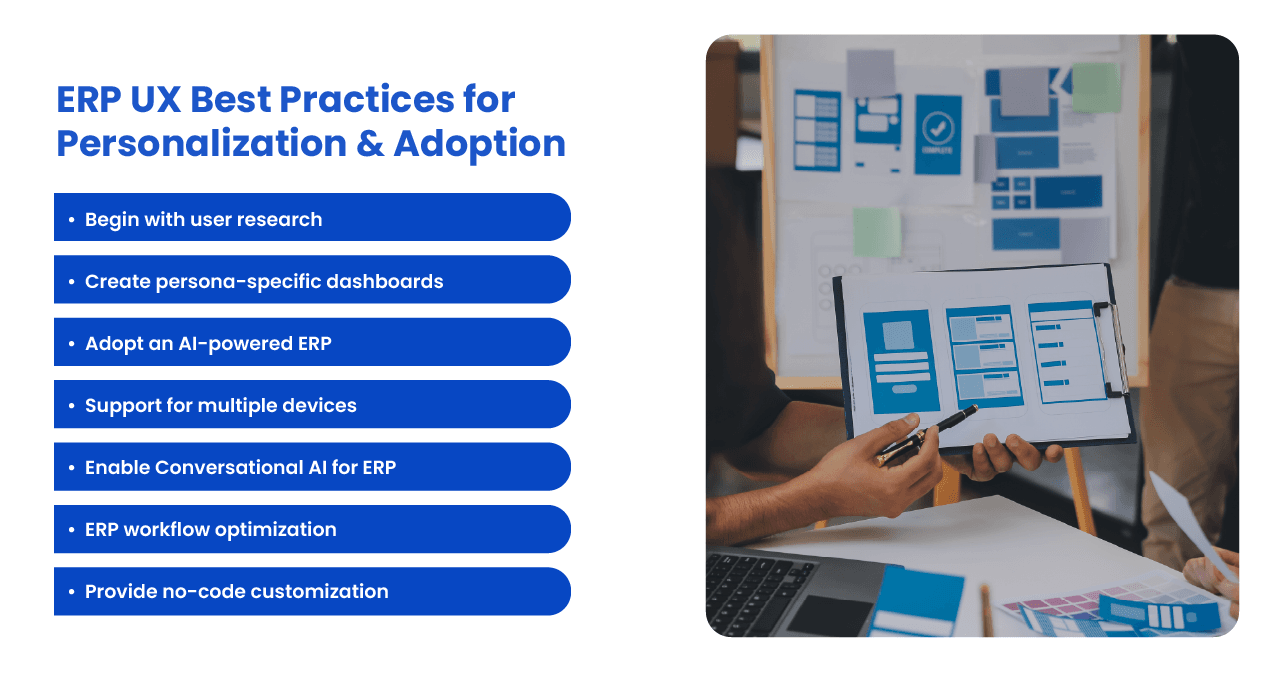
1. Study Users Before Changing the Interface
ERP UX decisions should begin with actual users, not assumptions made during a management meeting. Speak with employees from each department and observe how they complete routine tasks.
Document where users pause, switch to another tool, enter the same information twice, or contact someone for help. These points often reveal more useful improvement opportunities than a general request to make the system look modern.
User research should identify:
- The tasks performed most frequently
- Information needed to make decisions
- Common errors and delays
- Unnecessary approvals or data-entry steps
- Devices used in different working environments
- Reports and alerts that users actually review
2. Design Interfaces Around Roles and Responsibilities
Create dashboards and navigation structures for clearly defined user roles. Each role should have direct access to the tasks, reports, and records required for its work.
Role-based design also supports security. Users should not see confidential information or administrative controls that fall outside their responsibilities. However, permissions should not become so restrictive that employees cannot complete legitimate cross-department tasks.
3. Reduce Visual and Process Complexity
A crowded dashboard is not necessarily an informative dashboard. Avoid filling the screen with charts, counters, alerts, and widgets simply because the system supports them.
Prioritize information that requires action. Secondary details can remain available through drill-down views or expandable sections. This approach, sometimes called progressive disclosure, keeps the initial screen manageable without removing access to deeper information.
Forms should follow the same principle. Display fields when they become relevant instead of presenting every possible option at once.
4. Use Familiar and Consistent Patterns
Buttons, labels, menus, forms, and status indicators should behave consistently throughout the ERP. Users should not need to relearn basic interactions when moving between modules.
Use business terminology that employees already understand. Internal system language, technical database labels, and unexplained abbreviations create avoidable confusion.
5. Allow Controlled Self-Service Personalization
Users may benefit from adjusting dashboard widgets, rearranging columns, saving filters, selecting default views, or creating personal shortcuts. These options can make the system more useful without requiring development work.
However, self-service personalization needs sensible boundaries. Core fields, required workflows, compliance controls, and security settings should remain centrally governed. Personal flexibility should not create inconsistent processes or unreliable records.
6. Add Help Within the Workflow
Training should not exist only in separate manuals or onboarding sessions. Users often need guidance while completing a task.
Tooltips, field descriptions, sample formats, guided steps, and links to concise documentation can reduce support requests. Error messages should explain what went wrong and how the user can correct it. A message such as “Invalid entry” provides little practical help, despite software developers apparently believing otherwise.
7. Design for Accessibility
ERP accessibility improves the experience for everyone, not only users with permanent disabilities. Interfaces should support keyboard navigation, readable contrast, meaningful labels, clear focus states, scalable text, and assistive technologies.
Do not rely only on color to communicate status. Approval states, warnings, and errors should also include text or recognizable icons.
8. Introduce AI Where It Solves a Defined Problem
AI can support ERP usability through natural-language search, contextual recommendations, anomaly alerts, document extraction, and guided assistance. However, adding a chatbot to an already confusing process does not repair the underlying workflow.
AI features should be based on a clear use case. Recommendations should be explainable, permissions must still apply, and users should remain able to review important actions before they are completed.
Businesses exploring these capabilities should treat AI-enabled ERP as one part of the user experience, not as a substitute for good interface design and process planning.
9. Test With Real Users Before a Full Rollout
Prototype important screens and workflows with a small group of employees. Ask users to complete realistic tasks without detailed instructions. Their behavior will reveal whether labels, navigation, and process steps are genuinely clear.
Testing should include experienced employees, new users, occasional users, and people working from different devices or locations. A workflow that feels obvious to the implementation team may be far less obvious to someone seeing it for the first time.
10. Improve the Experience Continuously
ERP UX work should continue after implementation. Business processes change, user roles evolve, and new modules or integrations can introduce additional complexity. This ongoing review fits into the wider pattern of post-launch ERP management, which also covers process alignment, change control, and scheduled maintenance.
Review usage data, support requests, task completion times, and user feedback regularly. Incremental improvements are often safer and more effective than waiting for another large redesign.
How to Measure ERP Adoption and Usability
User adoption should be evaluated through observable behavior rather than general opinions about whether employees like the interface.
| Metric | What It Can Reveal |
|---|---|
| Active users by role | Whether intended user groups are regularly accessing the system |
| Task completion time | Whether redesigned workflows are becoming faster |
| Error and correction rates | Whether forms and instructions are clear |
| Support requests | Which screens or processes continue to cause confusion |
| Training time | How quickly new employees can work independently |
| Use of external spreadsheets | Whether employees still depend on manual workarounds |
| Workflow abandonment | Where users stop before completing a process |
Metrics should be reviewed by role and workflow. A single organization-wide adoption percentage can hide significant problems within individual departments.
Common ERP Personalization Mistakes
Personalization can create new problems when it is introduced without governance. Common mistakes include:
- Creating a different custom interface for every individual user
- Automating an inefficient process without reviewing it first
- Adding too many dashboard widgets and alerts
- Ignoring mobile and accessibility requirements
- Using AI features without clear permissions or review controls
- Changing familiar workflows without involving employees
- Measuring logins instead of meaningful task completion
Businesses should also distinguish between useful personalization and excessive customization. Standard configuration is usually easier to maintain and upgrade. Custom development should be reserved for workflows that provide clear operational value and cannot be supported effectively through existing settings.
A structured ERP customization strategy can help organizations balance usability improvements with long-term maintainability.
Building an ERP Experience Employees Will Use
ERP adoption depends on more than software capabilities. Employees need an interface that reflects how they work, gives them relevant information, and helps them complete tasks without unnecessary effort.
The most effective ERP UX improvements are usually practical rather than dramatic. Clear navigation, role-based dashboards, shorter forms, mobile-friendly workflows, contextual guidance, and consistent design can make a substantial difference to daily use.
NOI Technologies helps organizations evaluate ERP workflows, improve interface usability, and develop role-based experiences for complex business operations. Our approach focuses on making ERP systems easier to use without introducing unnecessary customization or maintenance overhead.
Schedule a consultation to discuss ERP interface design, workflow improvements, or custom ERP development requirements.